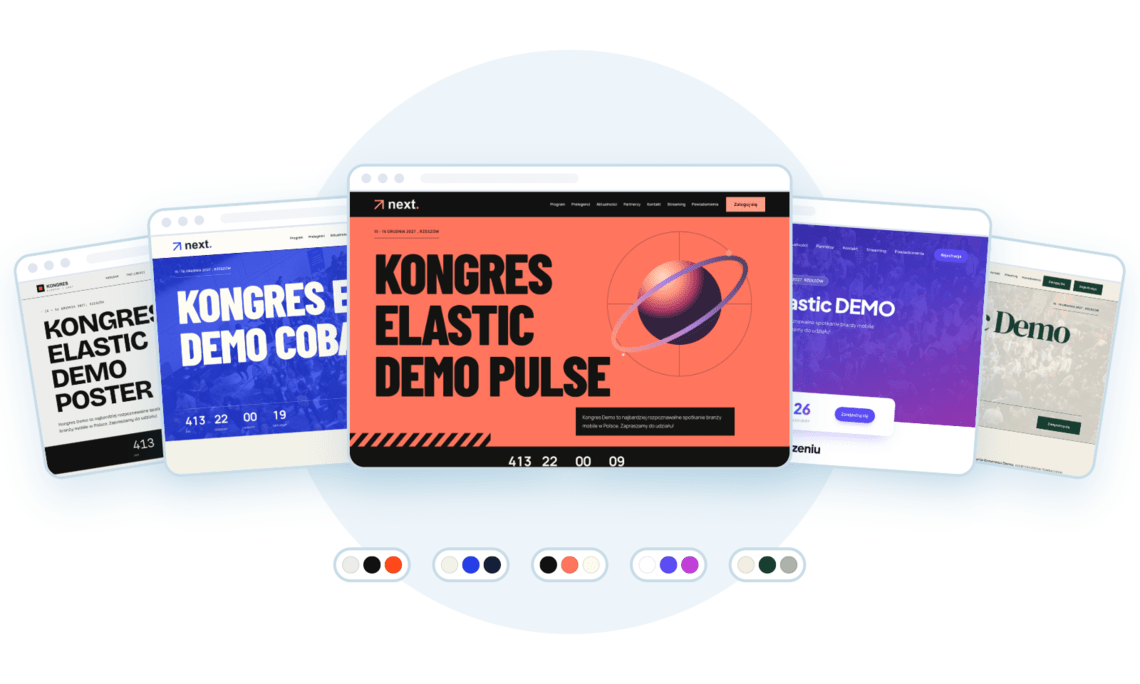
The event website is often the first place where attendees meet your conference. That is why the classic Elastic template has been joined by five new ones: Aurora, Pulse, Cobalt, Forum and Poster. Each has its own character, and changing the look of the whole site takes one field in the panel.
One click, a whole new style
A template changes the look of the entire website: the banner, menu, headings, buttons, speaker cards, agenda, registration form and footer. Content, modules and settings stay as they are, so you can switch templates at any time, even while registration is open.
Every template comes with a carefully chosen set of colours and fonts. It is a starting point: after picking a template, change the colours to your brand colours, swap the fonts for any from Google Fonts and upload your own banner photo. The site looks designed from scratch, not off the shelf.
Meet the new templates
Aurora: modern and light
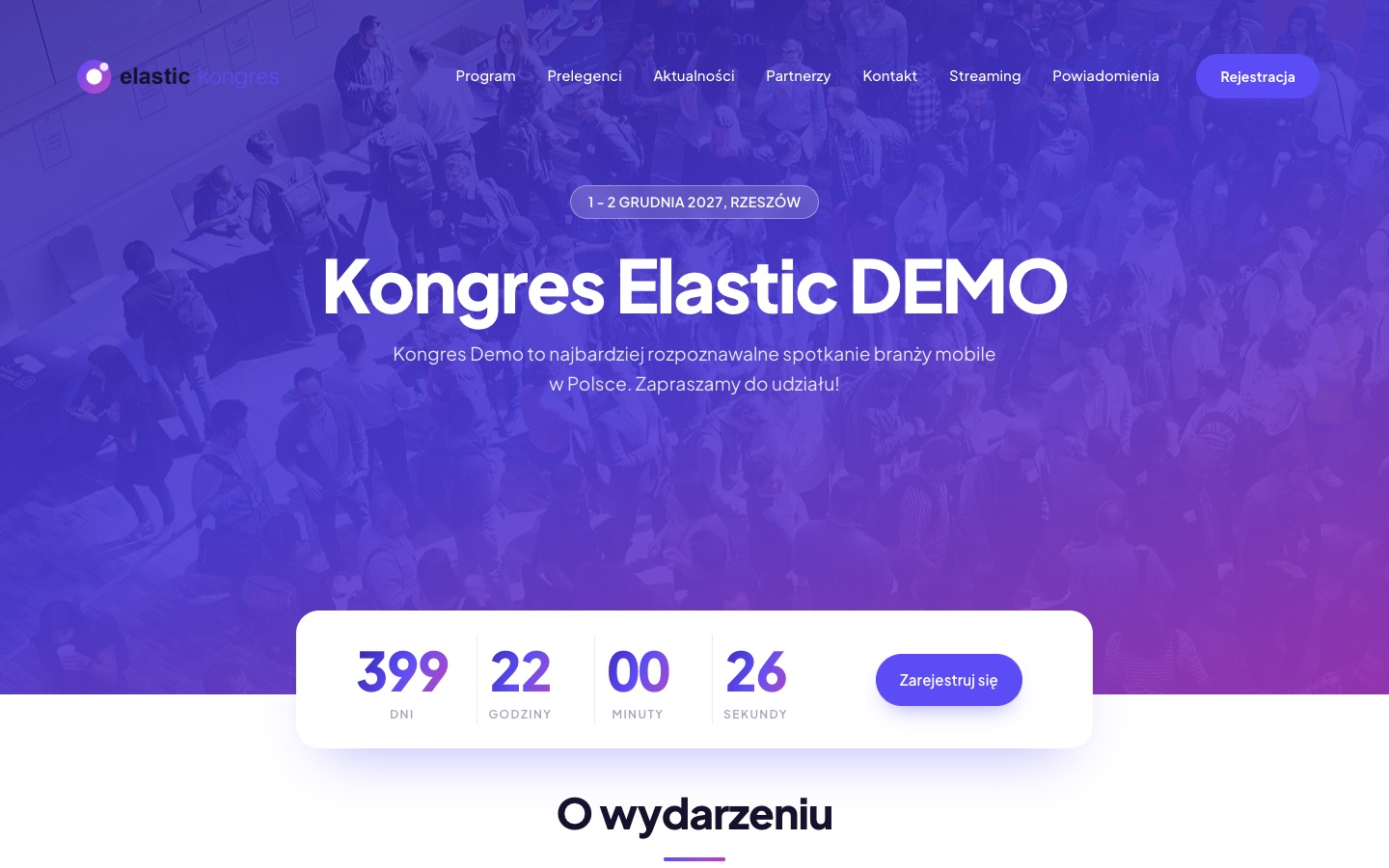
A white, airy site with an indigo-to-violet gradient banner, rounded cards and the Plus Jakarta Sans font. A versatile choice for business, startup and product conferences.
Pulse: dark and bold
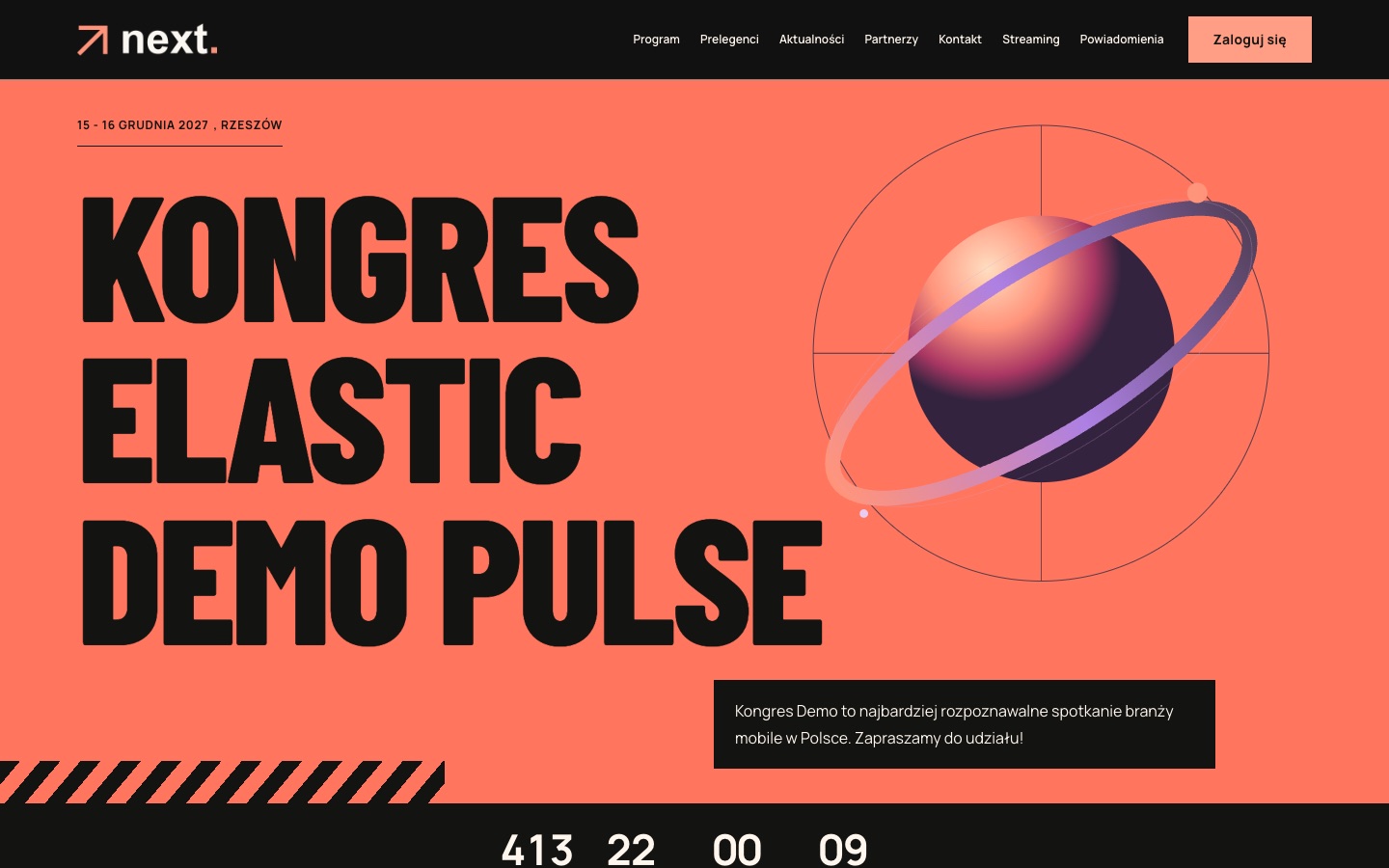
A black background, a coral banner and huge condensed headlines. Pulse grabs attention from the first second, which makes it great for tech events, meetups and festivals.
Cobalt: energy in a light version
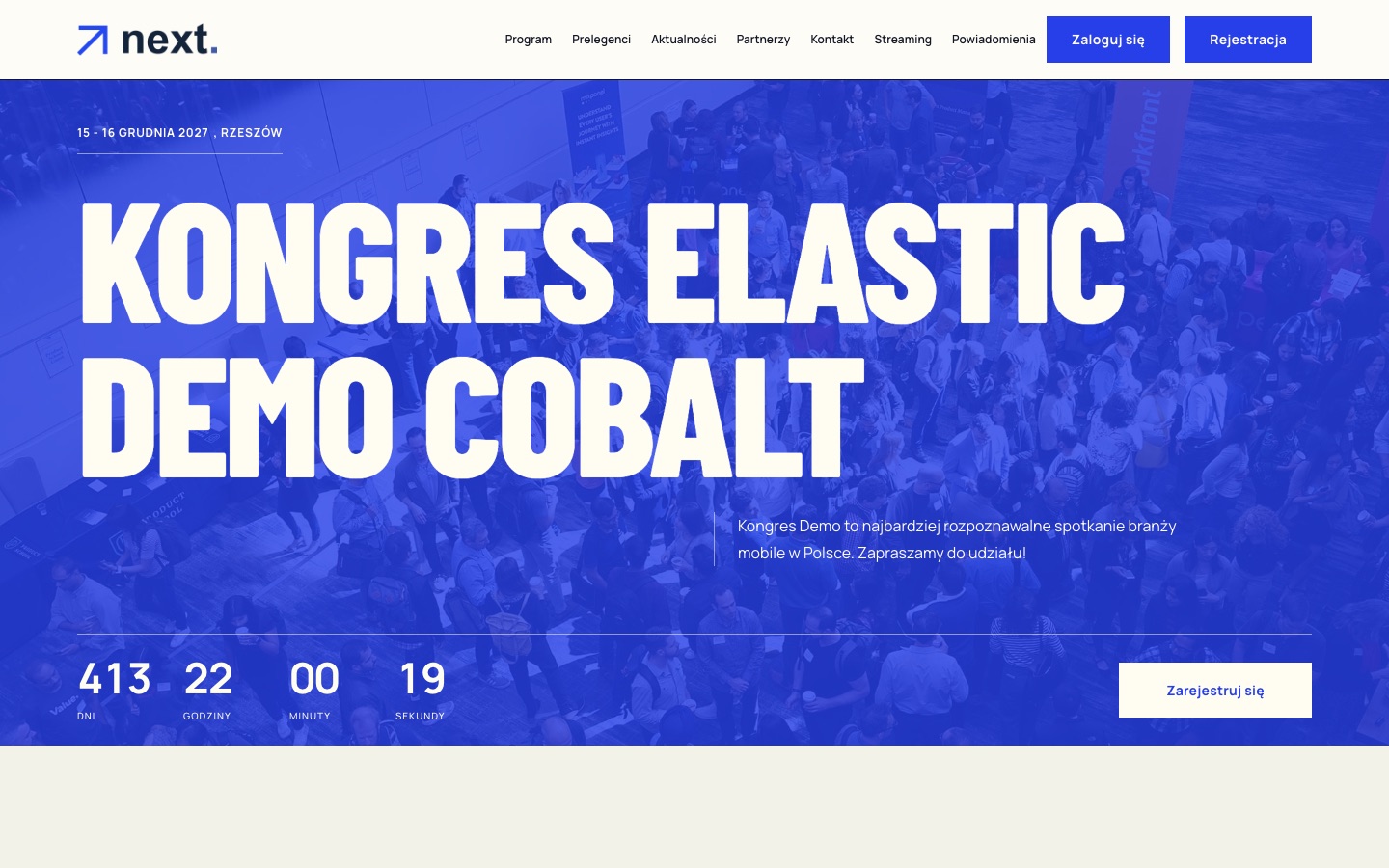
The same strong, poster-like layout as Pulse, but on a cream background with a cobalt blue banner and a navy footer. Bold, yet more formal.
Forum: elegant and serious
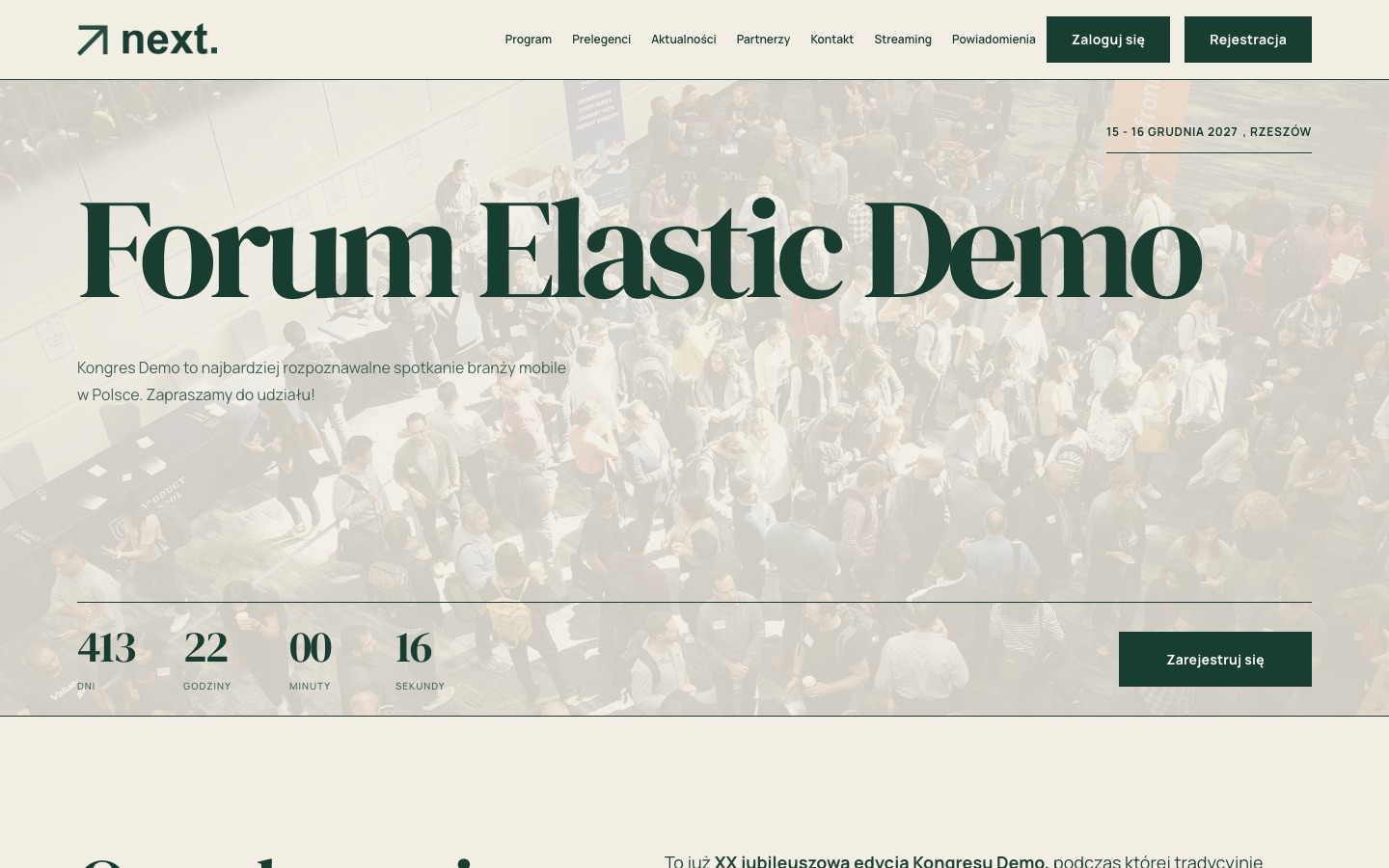
A paper background, dark green accents and serif headlines, like a good magazine. Forum suits congresses, industry forums, and scientific and medical conferences.
Poster: a bold poster style
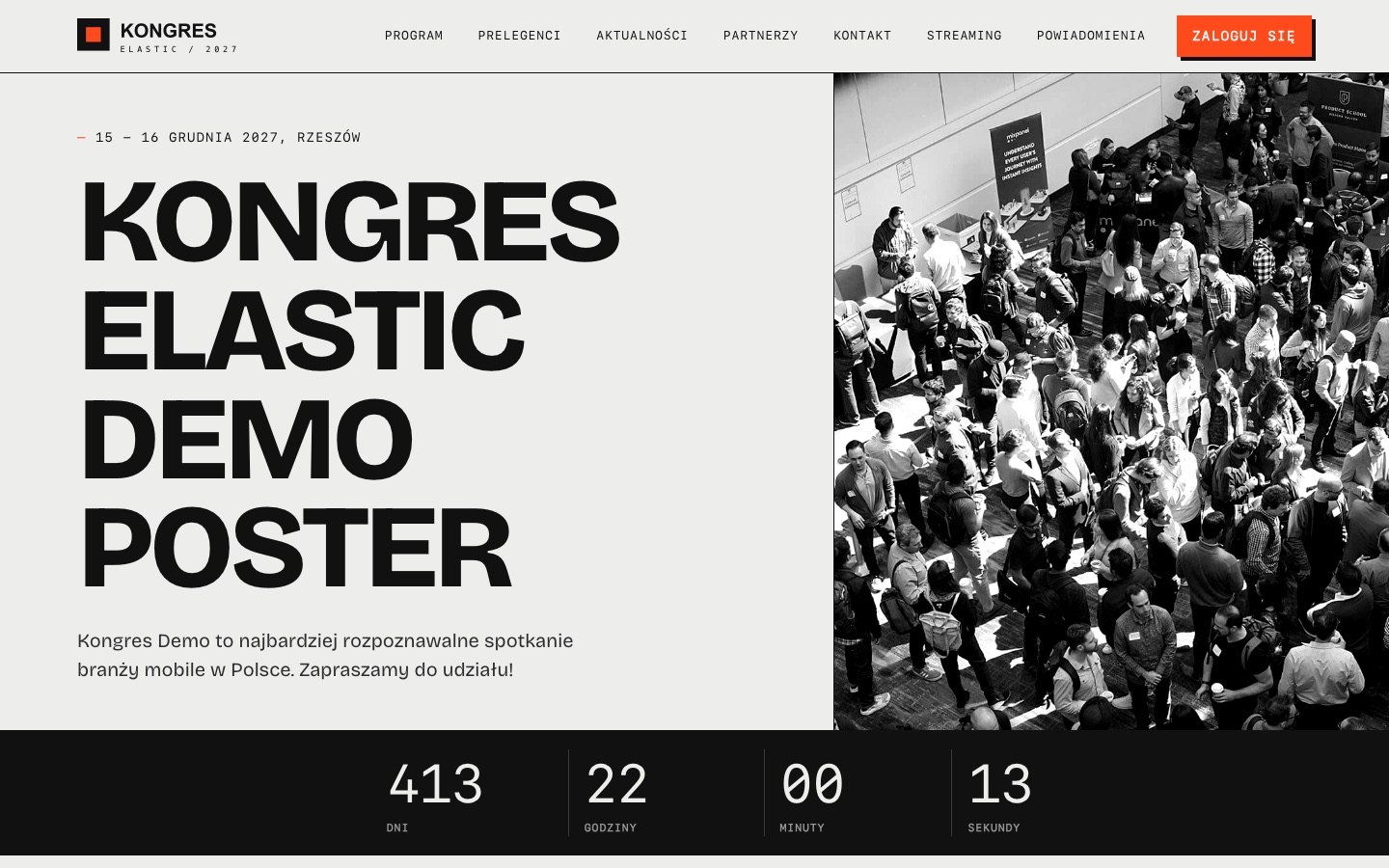
Black text on light grey, orange buttons and a black-and-white photo next to the title. Poster looks like an event poster and fits creative, design and cultural events.
Elastic: the proven classic
The existing template remains the default. If your site is already live and you like it, you do not need to change anything. See it at demo-classic.mk-events.pl.
See the same event in every template
We have prepared demo sites with the same event in every template. On each of them, at the right edge of the screen, you will find a Templates tab that takes you between the versions. In a few seconds you can compare how the same agenda, the same speakers and the same registration form look in different styles.
Open the demo and switch templates
How to change the template?
- In the event panel, choose Website in the side menu.
- In the Template field, pick a new template and save the changes.
- Adjust the colours, fonts and banner photo to your brand.
If your colour changes go too far, the Save and restore template colours button brings back the demo settings in one click. You will find a detailed guide in the help article “How to change the website template” in the panel.
Topic cluster
Explore this topic
This resource is part of the Event management system . Start with the pillar page or continue to a related guide, feature overview or implementation story.